Friday, October 7, 2011

Create custom list using Content Type and Schema.xml file

Creating a schema for a custom SharePoint list has always been something I think which could be much improved upon, as it is always something that may cause you to pull out your own teeth.

In my experience the easiest way to do this is to replace the  ContentType tags with the following:


Then it's as simple as adding your fields within the field tags of your schema.xml file, see below:


You can always use the GUID generator that comes with Visual Studio to generate new GUID's for your different fields.

Once complete, if you wish for your fields to be displayed in your view, add them to your ViewFields tags, (ViewFields tags can be found within the Views, View tag of your schema.xml file) as shown below:


You have now successfully created a working schema.xml file, hope this helps in stopping you from tearing your hair out.

How to access Init Parameters for SharePoint Silverlight Web Part

Custom initialisation parameters are accessible from within the silverlight web part, these values, are values passed from the Sharepoint Silverlight web part into the Silverlight application.

These values are passed in the form of a Dictionairy object and they are passed as follows:

Key=Value,Key1=Value2
These values can be accessed by using the following code:

private void Application_Startup(object sender, StartupEventArgs e)
{
 string value = e.InitParams["Key"];
}
Please let me know if this post has helped you, and if you have any improvements or comments please feel free to post them.

Tuesday, October 4, 2011

WCF Annonymous access is required for the IIS application that host this service.

When developing WCF web services for SharePoint you may sometimes run into the following problem.

Security settings for this service require 'Anonymous' Authentication but it is not enabled for the IIS application that hosts this service.

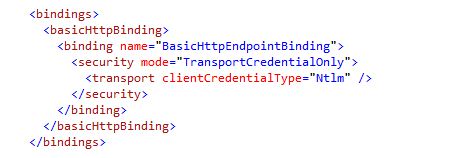
Trust me, you will knock your head trying to solve this one. The solution is pretty simple though. In your web.config file modify your the bindings section with the following:


If you SharePoint application is using Kerberos authentication please change the mode to Windows.

This solution worked for me, hope that it will work for you.

Till next

Debuging Silverlight WebPart in SharePoint 2010

Debuging a silverlight web created and used in SharePoint 2010 can sometimes make you want to pull your hair out. I literally knocked my head against the wall a few times trying to get debugging to work. It's pretty simple though, all you need to do is select your project properties, click the sharepoint tab, and enable silverlight debugger.

For more information please refer to http://vangalvenkat.blogspot.com/2011/03/how-to-debug-silverlight-webpart-in.html it is a great resource and helped me to debug my silverlight application.

Until next time, hope this post has helped you as it certainly helped me.

Tuesday, August 16, 2011

Sharepoint and WSS versions

If ever you need to find out which CU updates are installed you can check them by checking your version number which will tell you which CU updates or service packs are installed.

Please refer to Sharepoint versions numbers.html for all version numbers about WSS and SharePoint this is a great resource.

Resources used : http://dhireny.blogspot.com/2010/09/wss-and-moss-version-numbers.html

Monday, July 18, 2011

WCF Service - Could not find a base address that matches schema http

Could not find a base address that matches scheme http for the endpoint with binding BasicHttpBinding. Registered base address schemes are []..

This is probably the most painfull error that I have ever experienced. After trying many fixes and googling for hours.

Problem : I only got this error when the web service was deployed to a Sharepoint web application that did not use a DNS entry to access the site. (Web service deployed to the ISAPI folder)

Fix : The solution which helped me was to remove the Base Address tags from my web.config file and my service worked. See below:


When I removed the above tags I no longer had problems accessing my webservice from my SharePoint site.

How to associate a workflow to a list programatically

Associating workflows to lists are pretty simple.

You will need the following:

Task List - Out of the box list
WorkFlowHistory List - Out of the box list
Workflow List - Workflow associate to this list

SPSecurity.RunWithElevatedPrivileges(delegate()
{
web.AllowUnsafeUpdates = true;

SPList taskList;
SPList workflowHistoryList;
SPList indexItemList = web.Lists[Constants.IndexItemList];

try
{
taskList = web.Lists[Constants.WFTasks];
}
catch
{
taskList = web.Lists[web.Lists.Add(Constants.WFTasks, Constants.WFTasks, SPListTemplateType.Tasks)];
}

try
{
workflowHistoryList = web.Lists[Constants.WFHistory];
}
catch
{
workflowHistoryList = web.Lists[web.Lists.Add(Constants.WFHistory, Constants.WFHistory, SPListTemplateType.WorkflowHistory)];
}

SPWorkflowTemplate template = web.WorkflowTemplates.GetTemplateByBaseID(new Guid(Constants.workFlowTemplateId));

SPWorkflowAssociation association = SPWorkflowAssociation.CreateListAssociation(template, template.Name, taskList, workflowHistoryList);
association.AllowManual = true;
association.AutoStartChange = true;
association.AutoStartCreate = true;

indexItemList.WorkflowAssociations.Add(association);
indexItemList.Update();

web.AllowUnsafeUpdates = false;
web.Update();
});

Workflow start properties may vary, please change as you see fit.